
TL;DR: Never reboot a node that is still an active cluster member. Suspend it with -Drain so VMs live-migrate off, reboot, resume it, then let Storage Spaces Direct finish its repair jobs before you touch the next node.
1. Confirm the cluster is healthy before you start
All five checks must pass. If any fail, stop and resolve that first.
Get-ClusterNode      # all nodes: Up
Get-PhysicalDisk     # all: HealthStatus Healthy, OperationalStatus OK
Get-StorageJob       # must return nothing
Get-VirtualDisk      # all: Healthy
Get-StoragePool      # all: Healthy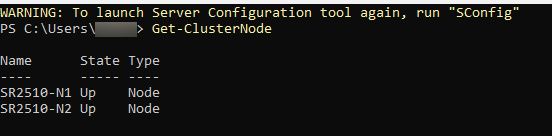




2. Pause and drain the node
-Drain live-migrates all running VMs and cluster roles off the node before it suspends. Users are not interrupted.
Suspend-ClusterNode -Name "NodeName" -Drain
Verify every role has moved. All cluster groups should read Online with an OwnerNode other than the paused node. Roles briefly showing Pending or Queued are still live-migrating — wait for them.
Get-ClusterGroup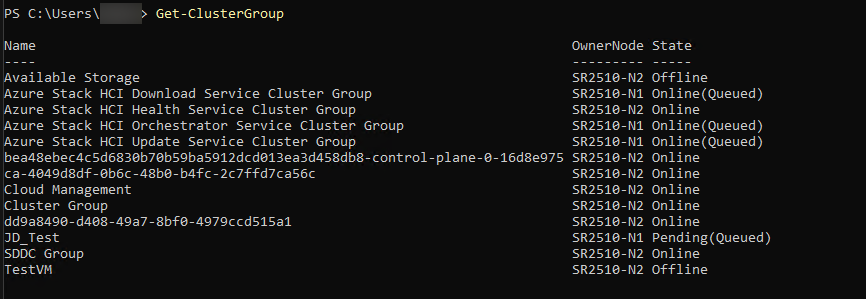
When migration is complete: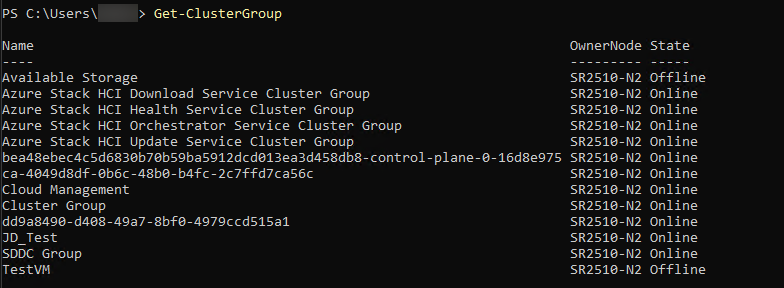
3. Confirm the expected "unhealthy" state
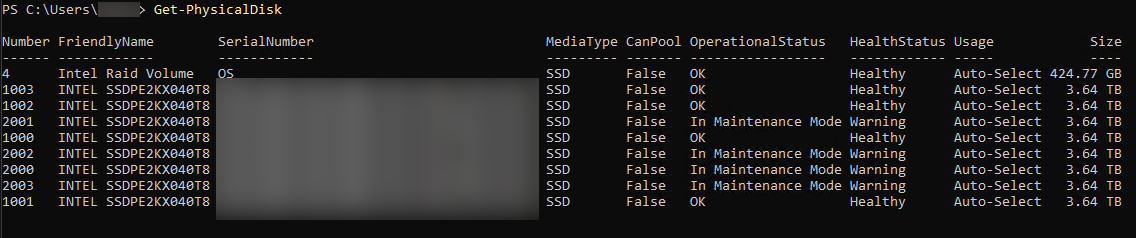
Once the node is paused, the following outputs are normal and do not indicate a fault:
Get-PhysicalDisk— that node's drives report In Maintenance ModeGet-VirtualDisk— volumes report Degraded operational statusGet-StorageJob— repair jobs are running


4. Reboot the node
Reboot, then wait for the node to rejoin. It will still show Paused until you explicitly resume it — that is expected, not a failed reboot.
Get-ClusterNode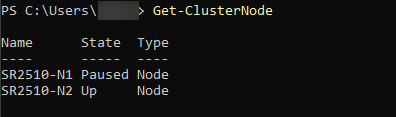
5. Resume the node and fail workloads back
-Failback Immediate returns cluster roles to the node automatically. Omit the flag if you would rather leave workloads where they migrated.
Resume-ClusterNode -Name "NodeName" -Failback Immediate
6. Validate before closing the maintenance window
Storage Spaces Direct now resyncs everything that changed while the node was out. Monitor until all four return to healthy:
Get-StorageJob       # wait until empty
Get-VirtualDisk      # returns to Healthy (Warning is normal while repairs run)
Get-PhysicalDisk     # Healthy / OK ("Stopping Maintenance Mode" is a normal transient)
Get-StoragePool      # Healthy



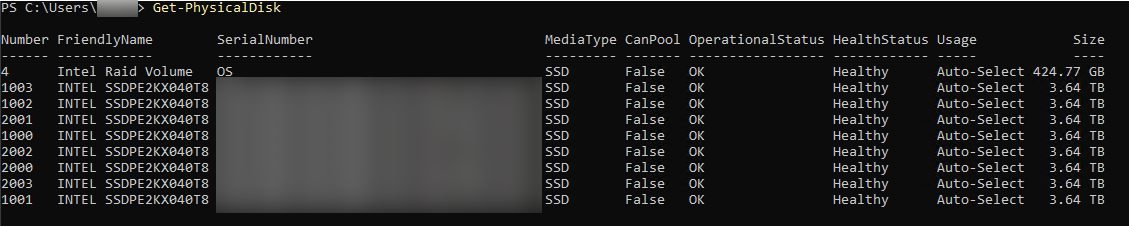

Repair time ranges from minutes to hours depending on cluster size and how much data changed. To watch progress live:
while ($true) { Get-StorageJob; Start-Sleep 30; Clear-Host }Why
A clustered node holds both compute (running VMs) and a copy of your storage. Rebooting it directly drops the VMs hard and pulls a storage copy out from under the pool without warning. Suspending with -Drain moves the VMs off gracefully and places the node's drives into maintenance mode, so Storage Spaces Direct expects the absence and tracks exactly what needs resyncing on return.
Going forward
- One node at a time. Do not begin maintenance on a second node until
Get-StorageJobis empty and all virtual disks report Healthy. Skipping the resync wait is the most common way a routine reboot becomes a data-availability incident. - On a two-node cluster, volumes run on a single copy while one node is paused or down. There is no fault tolerance during that window — keep it as short as practical.
- Reboot on a schedule. Nodes with very long uptime accumulate stale state (WinRM sessions among them) that can surface as intermittent management-plane errors such as WS-Management operation timeouts, even when the cluster itself is healthy. A periodic rolling reboot using this procedure is good hygiene.
- Azure Local 23H2 and later perform this pause/drain/resume cycle automatically during solution updates. This manual procedure is for ad-hoc reboots outside an update run.
Optional details
On Windows Server 2019 and later, including all Azure Local versions, Suspend-ClusterNode -Drain places the node's drives into storage maintenance mode automatically — the screenshots in step 3 confirm this. Older guidance that calls for running Enable-StorageMaintenanceMode and Disable-StorageMaintenanceMode explicitly is Windows Server 2016-era and is not required on current builds. Running them manually is harmless but redundant.
Microsoft reference: Take a server offline for maintenance