
TL;DR: The Updates blade hides minor cumulative updates by default and shows only the latest cumulative update on your current release train, because Azure Local supports skipping intermediate cumulative updates within the same OS build. Checking Show all eligible versions reveals every individual update so you can install one specifically, but installing the latest alone is normally sufficient and recommended.
Recommended action:
In the Azure portal, navigate to your Azure Local system → Operations → Updates.
Leave Show all eligible versions unchecked. The default view selects only the latest cumulative update on your release train.
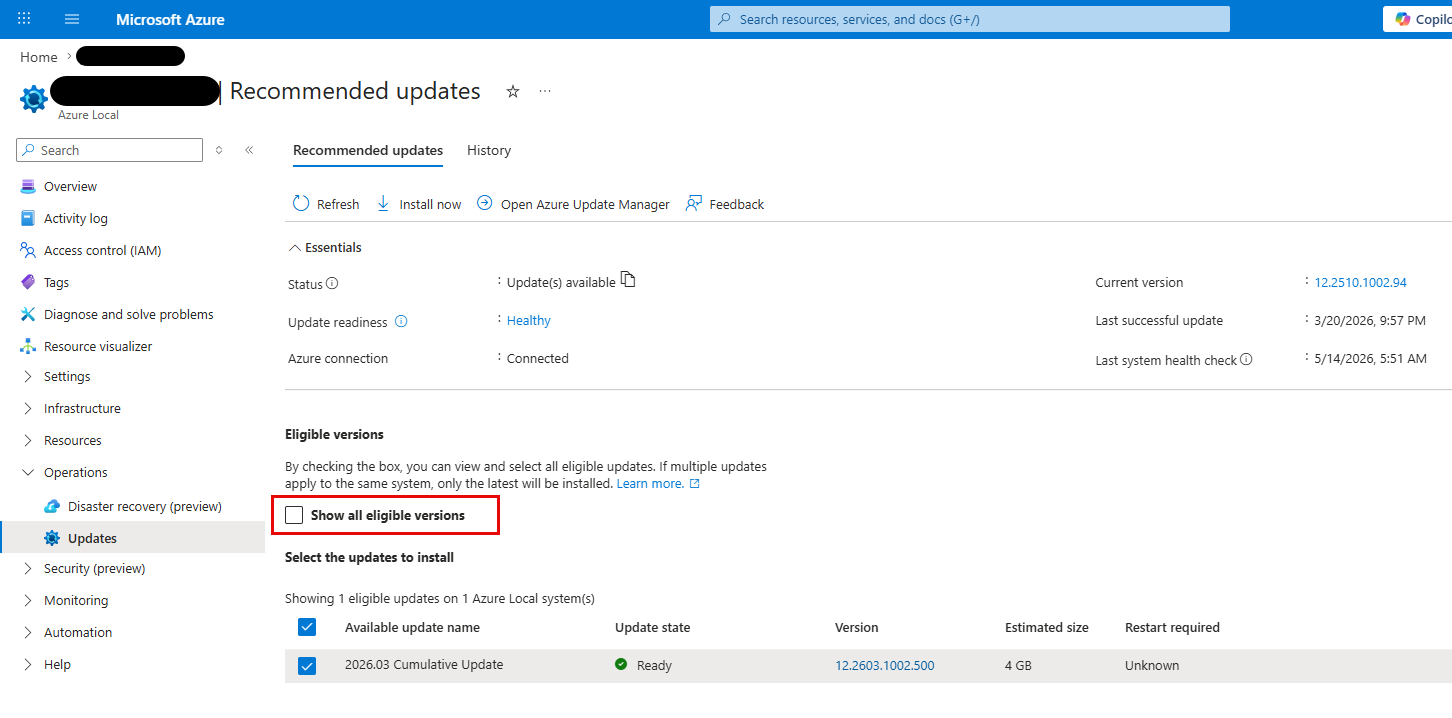
Select the latest cumulative update and click Install now.
If a Solution Builder Extension (SBE) update is also listed (for example,
SBE_DataON_AZS1_5.0.2604.700), install it together with or immediately after the OS cumulative update — it ships the matching hardware firmware and driver payload for that release.After the update completes, return to the Updates blade to confirm Current version reflects the new build (for example,
12.2603.1002.500) and the Eligible versions list is empty or shows only newer releases.
Why:
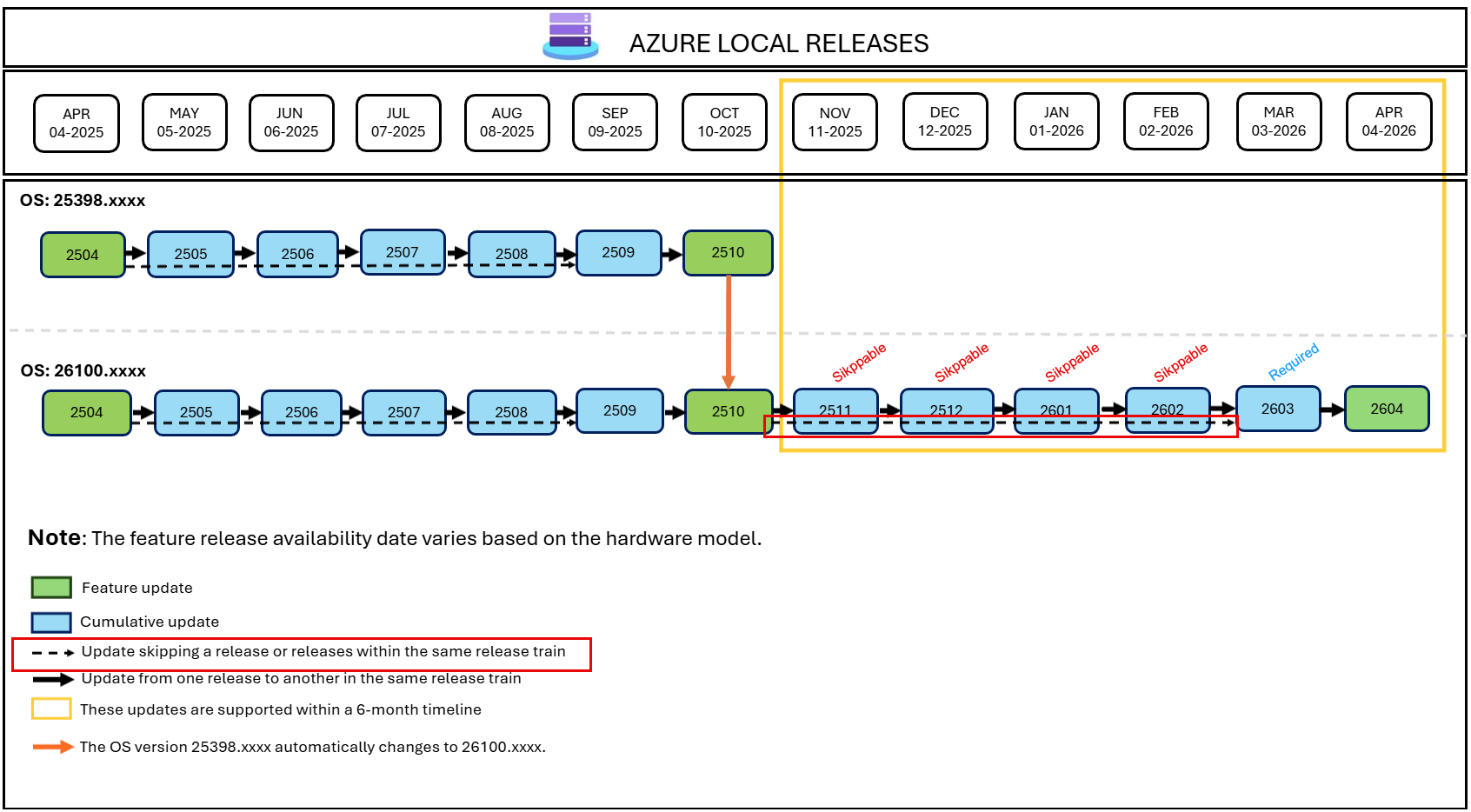
Azure Local cumulative updates on the same OS build (currently 26100.xxxx for the 23H2 release train) are cumulative in the true sense — installing build 2603 already contains every fix shipped in 2511, 2512, 2601, and 2602. The Updates blade hides the intermediate builds in the default view to prevent administrators from installing older content that will be immediately superseded. Checking Show all eligible versions exposes those intermediate builds for scenarios where you need to step to a specific version (for example, to match a sibling cluster), but it is not the normal install path.
The same release train also allows skipping minor builds without intermediate installs. Per Microsoft's Azure Local release information, an update arrow drawn with a dashed line represents an “update skipping a release or releases within the same release train” — these are supported paths, not workarounds. This is why a cluster last updated in March 2026 to 2510 can move directly to 2603 in May 2026 without installing 2511, 2512, 2601, or 2602 first.
Going forward:
As the default behavior of the Updates blade, expect to see only the newest cumulative update most of the time. This is correct; install it and you are current.
Only use Show all eligible versions when you have a specific reason to install an intermediate build (matching another cluster, working around a per-build issue, or installing an SBE that targets an older OS build).
Install SBE updates from your hardware vendor in step with OS cumulative updates. The SBE delivers the firmware and driver payload validated against that release; skipping it leaves the cluster on older hardware-level components.
Cumulative updates are supported for 6 months from their release date. After that window, an update will no longer appear in the Updates blade — install at least one cumulative update every 6 months to stay supported.
Optional details:
Release train: Azure Local 23H2 is on OS build
26100.xxxx. The cumulative version string shown in the portal (12.2603.1002.500) encodes the release calendar —2603means the 2026.03 cumulative update.Skip-level support: Cumulative updates within the same OS build (
26100.xxxx) can be applied skip-level. The earlier25398.xxxx→26100.xxxxtransition that occurred at the 2510 release is handled automatically when the cumulative is installed; it does not require a separate skip-level path.6-month support window: Each cumulative update is supported by Microsoft for 6 months from its release. Older updates are removed from the eligible list once they fall outside this window.
Reference: Azure Local release information — 23H2