
TL;DR: WatchCluster.psm1 from Microsoft's DiskSpd repository provides a live, refreshing console view of cluster-wide CSV, S2D, SMB, and Hyper-V performance counters — useful for real-time troubleshooting of storage performance, IOPS, latency, and bandwidth across all Azure Local nodes from a single window.
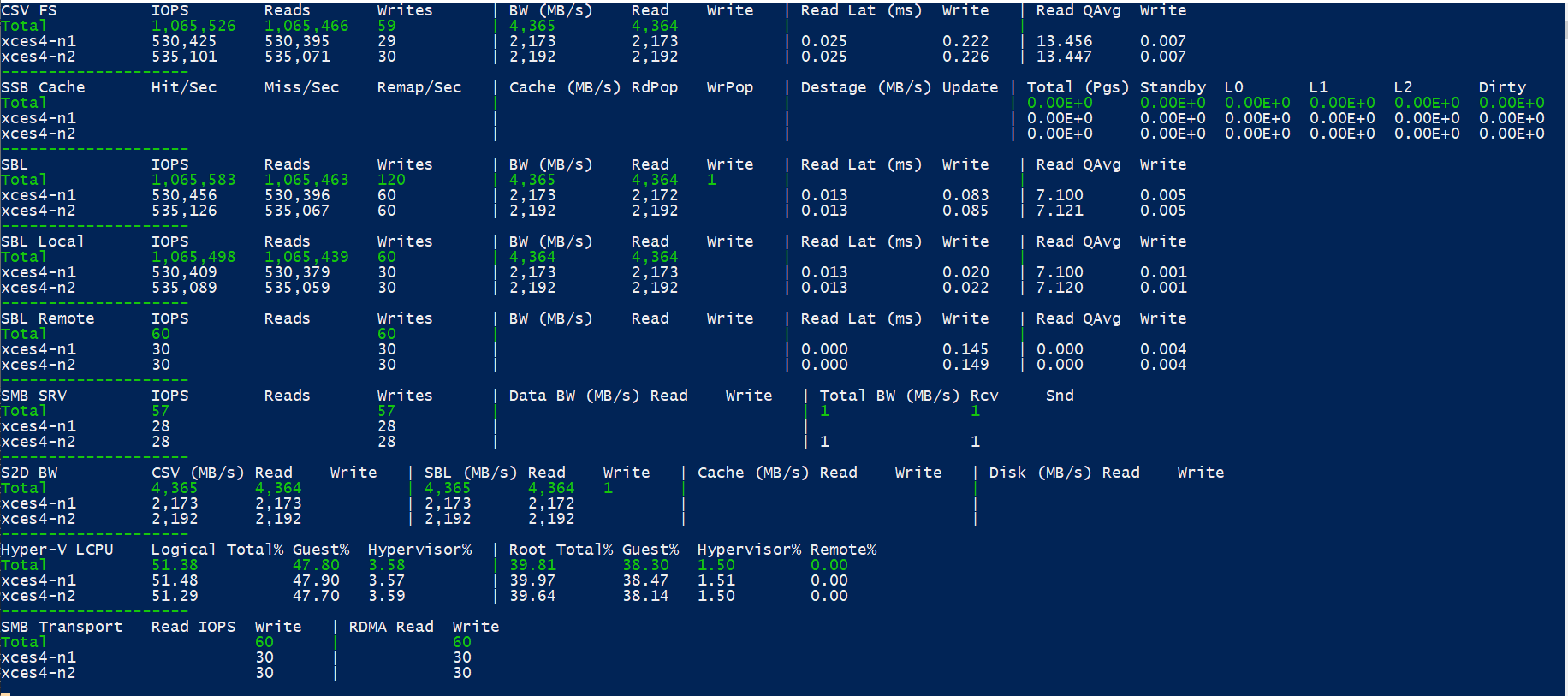
Example output:
Recommended action:
From a management workstation or one of the cluster nodes, open an elevated PowerShell window.
Download the module. Either method works:
Option A — direct download with
Invoke-WebRequest:Invoke-WebRequest ` -Uri "https://raw.githubusercontent.com/microsoft/diskspd/master/Frameworks/VMFleet/WatchCluster.psm1" ` -OutFile "$env:TEMP\WatchCluster.psm1"
Option B — download or clone from GitHub:
Browse to https://github.com/microsoft/diskspd/blob/master/Frameworks/VMFleet/WatchCluster.psm1 and use the raw-file download, or run
git clone https://github.com/microsoft/diskspd.gitand pull the file fromFrameworks/VMFleet/.Import the module:
Import-Module "$env:TEMP\WatchCluster.psm1" -Force
Launch the live CSV FS view (default):
Watch-FleetCluster -Cluster <ClusterName> -SampleInterval 2
Omit
-Cluster(or pass.) to target the local cluster.To watch a different set of counters, use
-Sets. Examples:# S2D bandwidth view (CSV, SBL, cache, disk tiers side-by-side) Watch-FleetCluster -Cluster <ClusterName> -Sets "S2D BW" # Hyper-V CPU utilization across all nodes Watch-FleetCluster -Cluster <ClusterName> -Sets "Hyper-V LCPU" # Multiple panels at once Watch-FleetCluster -Cluster <ClusterName> -Sets "CSV FS","S2D BW","Hyper-V LCPU" # Everything (as shown in the screenshot) Watch-FleetCluster -Cluster <ClusterName> -Sets "*"
Press
Ctrl+Cto stop.
Why:
The script fans out Get-Counter jobs to every cluster node via PowerShell remoting, aggregates the samples into a single refreshing console view, and self-heals when a node drops or a sampling job stalls. It is the same monitoring surface VM Fleet uses during DiskSpd benchmark runs, but does not require a VM Fleet workload to be active — it works against any live Azure Local / Storage Spaces Direct cluster.
Going forward:
Run from a dedicated PowerShell window — the tool calls Clear-Host on every refresh, so anything else in that window will be wiped. For long capture sessions, add -LogFile C:\Temp\watch.log to capture diagnostic messages about missing counters or downed nodes. After re-downloading the module following an upstream update, re-import with -Force to pick up changes.
Optional details:
Prerequisites on the machine running the tool:
PowerShell 5.1 or later (the module uses PowerShell classes).
Failover Clustering PowerShell module (
Import-Module FailoverClusters— included with RSAT-Clustering-PowerShell, or installed by default on cluster nodes).PowerShell Remoting (WinRM) enabled to all cluster nodes, with administrative rights.
Available -Sets values and what each panel shows:
| Set | Shows |
|---|---|
CSV FS (default) | Cluster Shared Volume IOPS, bandwidth, latency, queue depth |
S2D BW | Bandwidth at each tier: CSV → SBL → cache → physical disk |
SBL, SBL Local, SBL Remote, SBL* | Storage Bus Layer disk counters, total or split by local vs. remote traffic |
SSB Cache | Storage Spaces cache hit/miss, destage, page state (standby/dirty/L0/L1/L2) |
SMB SRV | SMB server-side share IOPS and bandwidth |
SMB Transport | SMB client-side request rate, including RDMA-transmitted requests |
Hyper-V LCPU | Logical and root virtual processor utilization across all nodes |
* | All panels at once |
Default parameter values: -SampleInterval 2 (seconds), -Cluster . (local cluster), -Sets "CSV FS".
The module is self-contained — it does not require the rest of the VM Fleet package, and dot-sourcing the .psm1 file (. .\WatchCluster.psm1) is a valid alternative to Import-Module for one-off use.
Source: https://github.com/microsoft/diskspd/blob/master/Frameworks/VMFleet/WatchCluster.psm1