
TL;DR: A community-driven Azure Monitor Workbook that gives you one view across every Azure Local cluster in your subscriptions — connectivity, health, updates, capacity forecasting, ARB status, physical machines, VMs, and AKS Arc. Most of it works the moment you import the workbook; the deeper capacity views need a Log Analytics workspace with the right counters flowing. Not officially supported by Microsoft — community-maintained.
What it solves
- One pane across every Azure Local cluster in your subscriptions, instead of clicking into them one at a time.
- Spotting outliers — a cluster behind on updates, an offline ARB, a node that's stopped reporting to Arc, a certificate about to expire.
- Capacity forecasting across clusters and per cluster (storage, CPU, memory).
- Update progress and history at fleet scale — first-time success rate, average duration, who's stuck.
Install
LENS is an Azure Monitor Workbook — JSON imported through Azure Portal → Monitor → Workbooks. Follow the deployment instructions in the repo README. It scopes to whatever Azure subscriptions you select at the top of the workbook, so it surfaces every Azure Local cluster you have access to.
Repo: https://github.com/Azure/AzureLocal-LENS-Workbook
What needs to be set up first. Most tabs (Azure Local Instances, System Health, Update Progress, ARB Status, Azure Local Machines, Azure Local VMs, AKS Arc Clusters) read directly from Azure Resource Graph and Resource Health — no extra configuration. The Capacity and Hyper-V VMs views need a Log Analytics workspace with specific performance counters flowing via DCRs; the workbook ships a "Dcr Setup" sub-tab in each that walks you through prerequisites, counters, sample ARM template, and deployment steps.
Try this first
Open the workbook and start on the Azure Local Instances tab — it's the fleet home view. The top of the tab shows three pie charts in a row: Cluster Connectivity, Cluster Health Status, and ARB Status. Anything red or yellow here is something you wouldn't have spotted from a single-cluster portal view. Below that you get totals (clusters, nodes, VMs, AKS Arc), update compliance breakdown, and a comprehensive instance table covering hardware vendor/model, billing model, hybrid benefit, and Azure verification.

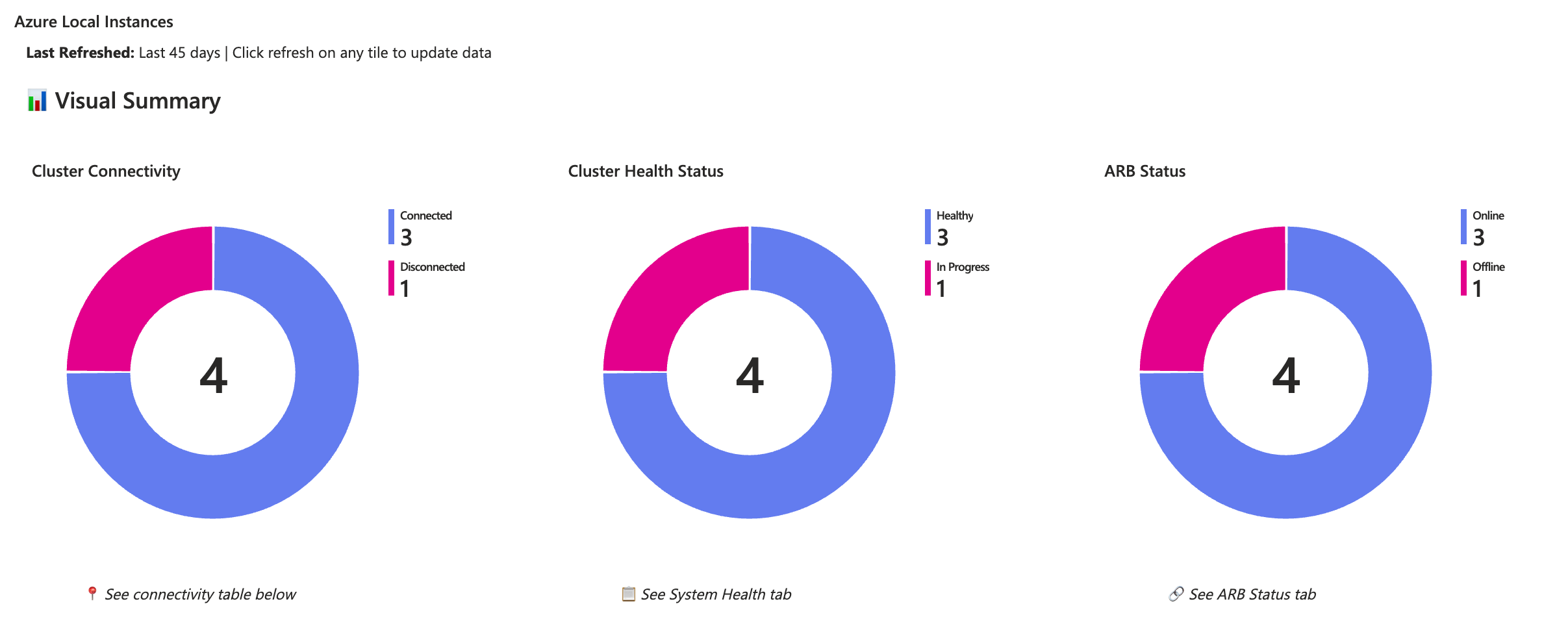
The eight tabs at a glance
| Tab | What it's for |
|---|---|
| Azure Local Instances | Fleet overview — connectivity, health, ARB, totals, update compliance, full instance inventory |
| Capacity | Capacity overview, multi-cluster forecasting, single-cluster deep dive, Hyper-V VM-level resource usage (needs DCRs) |
| System Health | Health-check failure summary, top 5 recurring issues, last-24-hour detailed results |
| Update Progress | Update state distribution, analytics (first-time success, duration), run history, clusters with updates available |
| ARB Status | Arc Resource Bridge status per instance, offline ARBs, recommended alert rules |
| Azure Local Machines | Physical nodes — connectivity, hardware vendor, OS version, Arc agent version, license type, failed extensions, NIC details |
| Azure Local VMs | VM inventory across the fleet, deployment trends, distribution by cluster |
| AKS Arc Clusters | Kubernetes versions, available upgrades, certificate expirations, Flux compliance |
Common scenarios
| You want to | Go to |
|---|---|
| Quick "is anything wrong across the fleet?" check | Azure Local Instances → Visual Summary |
| See which clusters are running an old solution version | Azure Local Instances → Update Compliance, or Update Progress |
| Forecast when a cluster will run out of CPU / memory / storage | Capacity → Multi-Cluster (Predictive Resource Exhaustion) |
| Track a specific cluster's resource trends and per-node behavior | Capacity → Single Cluster |
| Find offline Arc Resource Bridge appliances | ARB Status |
| Identify physical nodes that have stopped reporting to Arc | Azure Local Machines → Non-Connected |
| AKS Arc cluster certificate expirations or pending Kubernetes upgrades | AKS Arc Clusters |
| Update history and first-time success rate trends | Update Progress → Update Analytics |
Caveats
- Community-driven, not officially supported by Microsoft. Issues go to the GitHub repo, not Microsoft Support. Treat it as a power-user dashboard.
- Most tabs work the moment you import. The Capacity and Hyper-V VMs views need a Log Analytics workspace with the right perf counters flowing — follow the in-workbook DCR Setup guidance.
- The repo evolves. The workbook itself shows a version-update banner when a newer release exists — refresh from the repo when you see it.
- Resource Graph–based views are limited to clusters in subscriptions you have access to. Cross-tenant views require switching directories in the portal.
- For per-cluster live troubleshooting, this isn't the right tool — use
Microsoft.AzLocal.CSSToolson the affected cluster instead.
Canonical source
- GitHub repo (workbook JSON, README, issues, releases): https://github.com/Azure/AzureLocal-LENS-Workbook