
TL;DR: Microsoft's official PowerShell toolkit for Azure Local support engineers. Run health insights, auto-remediate known issues, collect evidence bundles for a support case, and dig into storage / network / SDN problems. Designed to run from anywhere with cluster access, not just on a node.
What it solves
- Microsoft Support asked for logs and you need a canonical, complete bundle.
- Cluster is misbehaving and you want a "what's broken" snapshot before opening a case.
- Suspected known issue but you want a probe that confirms it instead of guessing.
- Storage health, firmware drift, or Arc Resource Bridge logs are needed quickly.
- An issue the insight report found can be remediated automatically without writing scripts.
Install (30 seconds)
Install-Module Microsoft.AzLocal.CSSToolsPowerShell 5.1, run elevated. The cluster you query must be a deployed Azure Local stamp; the machine running the cmdlet only needs PSRemoting access to the nodes.
To install on every node from one node:
Install-AzsSupportModule -ComputerName <node1>,<node2>,<node3> -Credential (Get-Credential)Try this first
Two-step flow: identify, then fix.
Step 1 — Run the health insight report across the cluster.
Discover the nodes, then point the cmdlet at all of them:
$Nodes = (Get-ClusterNode).Name
Invoke-AzsSupportInsight -ComputerName $Nodes
Without -ComputerName, the cmdlet only runs against the local machine — almost never what you want for a cluster health check. Run from any node, or from an admin workstation with Failover Cluster Tools (RSAT) and PSRemoting access (in that case use Get-ClusterNode -Cluster <ClusterName> for discovery and add -Credential (Get-Credential)).
The HTML report lands in $(Get-AzsSupportWorkingDirectory)\InsightReport on the executing machine — override with -OutputDirectory. The path is printed at the end of the run.
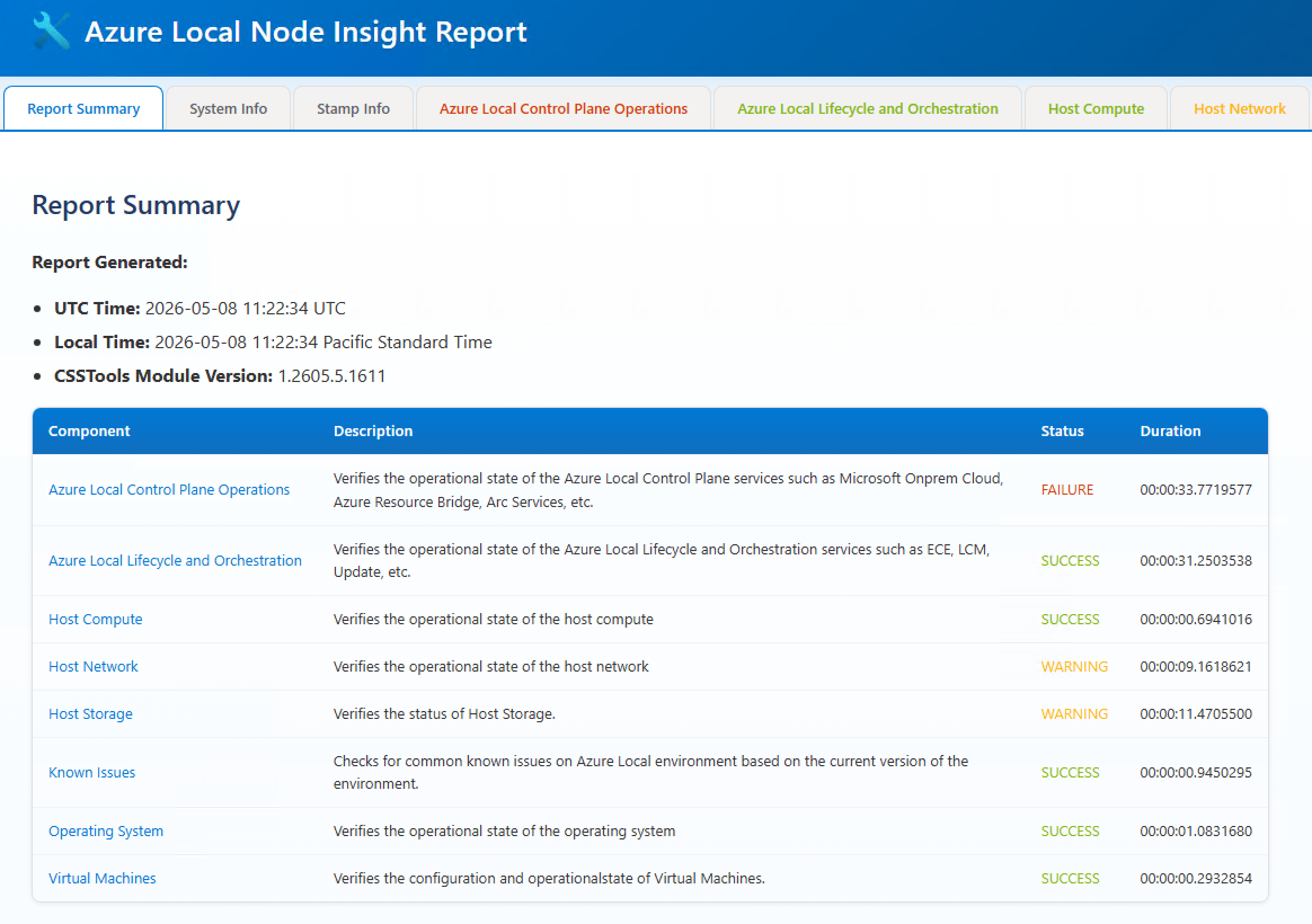
Step 2 — Auto-remediate what it found:
Invoke-AzsSupportInsightRemediation -ComputerName $NodesFor issues the insight report flagged as remediable, this applies the fix without you having to write the patch yourself. Review the proposed actions before confirming — not every issue is auto-remediable, and some require human judgement.
Common scenarios
| Symptom | Cmdlet |
|---|---|
| Need a canonical log bundle for a Microsoft Support case | New-AzsSupportDataBundle -Component OS |
| Arc Resource Bridge issues | New-AzsSupportDataBundle -Component AzureArcResourceBridge |
| "Is a known issue hitting this cluster?" | Invoke-AzsSupportDiagnosticCheck |
| Storage health, firmware drift, deep storage diagnostics | Get-AzsSupportStorageHealthFault, Get-AzsSupportStorageFirmwareDrift, Start-AzsSupportStorageDiagnostic |
| Cluster Health Service stuck — common recovery action | Restart-AzsSupportClusterHealthService |
| Network ATC intent troubleshooting with tracing | Set-AzsSupportNetworkATCIntentApplyWithTracing |
| SDN state at a glance | Show-AzsSupportSDNStateSummary |
| Environment validator results without re-running validation | Show-AzsSupportEnvironmentValidatorSummary |
| Confirm stamp identity (deployment, cloud, OEM version) | Get-AzsSupportStampInformation |
| Push the module to other nodes from one node | Install-AzsSupportModule -ComputerName <nodes> -Credential <cred> |
Most of the cmdlets above accept -ComputerName $Nodes to fan out across the cluster from a single invocation — same pattern as Step 1.
Where to run it
Most cmdlets — including Invoke-AzsSupportInsight and New-AzsSupportDataBundle — accept -ComputerName and -Credential, so they're equally happy on a cluster node or on an admin workstation that has PSRemoting access to the cluster. Output (HTML reports, evidence bundles) writes to the local working directory of the executing machine; running from a workstation usually saves you a copy-off step since nodes don't ship with a browser. Cmdlets without -ComputerName (the storage and stamp-info getters, mostly) need to run on a node where the data physically lives.
Caveats
- PowerShell 5.1, elevated.
- The cluster you query must be a deployed Azure Local stamp — these cmdlets read stamp-specific data. For pre-deployment or deploy-failure scenarios, use
AzStackHci.DiagnosticSettingsinstead. The two modules are complementary. - The module emits ETW and insight telemetry to Microsoft by default. To run silently:
(Both have matchingDisable-AzsSupportTraceLog Disable-AzsSupportInsightLogEnable-*cmdlets.) - Evidence bundles can be several GB. Plan for free space on the machine collecting them before running
New-AzsSupportDataBundle. - Auto-remediation (
Invoke-AzsSupportInsightRemediation) makes changes to your cluster — review proposed actions before confirming. Not every issue is auto-remediable.
Canonical sources
- PowerShell Gallery: https://www.powershellgallery.com/packages/Microsoft.AzLocal.CSSTools
- Cmdlet inventory expands as Microsoft ships new components, known-issue probes, and remediations — refresh against PSGallery periodically.