
TL;DR: A free, actively-maintained Microsoft PowerShell module for Azure Local. Run it on any cluster node to get a tabbed HTML report with health checks, consistency comparisons across nodes, Azure connectivity validation, and crash-dump configuration — all your cluster diagnostics in one file.
What it solves
- Cluster-wide health snapshot in one report — system info, network, services, drivers, hotfixes, event logs, plus health checks and consistency comparisons between nodes.
- Connectivity sweep across every Azure endpoint your stamp needs to reach — registration, Arc, telemetry, OEM update sources.
- Distinguishing SSL inspection by a corporate proxy from CRL/OCSP endpoints that simply aren't reachable (different fix in each case).
- Crash dumps that aren't being captured because the kernel dump or page file is misconfigured.
- Pre-deployment validation of the same items before a stamp is built.
Install (30 seconds)
Install-Module AzStackHci.DiagnosticSettingsPowerShell 5.1 minimum, run elevated. Supports both Windows PowerShell (Desktop) and PowerShell 7+ (Core). Released on a near-monthly cadence — refresh periodically.
Try this first
Two starting points depending on what you're investigating.
Cluster-wide health snapshot (the everyday command):
Get-AzStackHciOsConfigSettings -Scope ClusterCollects OS configuration, network config, services, drivers, hotfixes, event logs, and more from every node in parallel via PSRemoting, then produces a tabbed HTML report with a Summary tab (health checks + consistency comparisons across nodes) and a detail tab per node.
Where to run it. Run on a clustered node — the cmdlet uses Get-Cluster with no arguments to discover the cluster, so it needs the local machine to be a cluster member. The HTML report writes to -ExportPath on the executing node (default C:\Temp\AzLocal_OSConfig with a date suffix). Since Azure Local nodes don't ship with a browser, copy the HTML off the node afterward to view it — easiest pattern is browsing from your workstation to \\<nodename>\C$\Temp\ over the admin share.
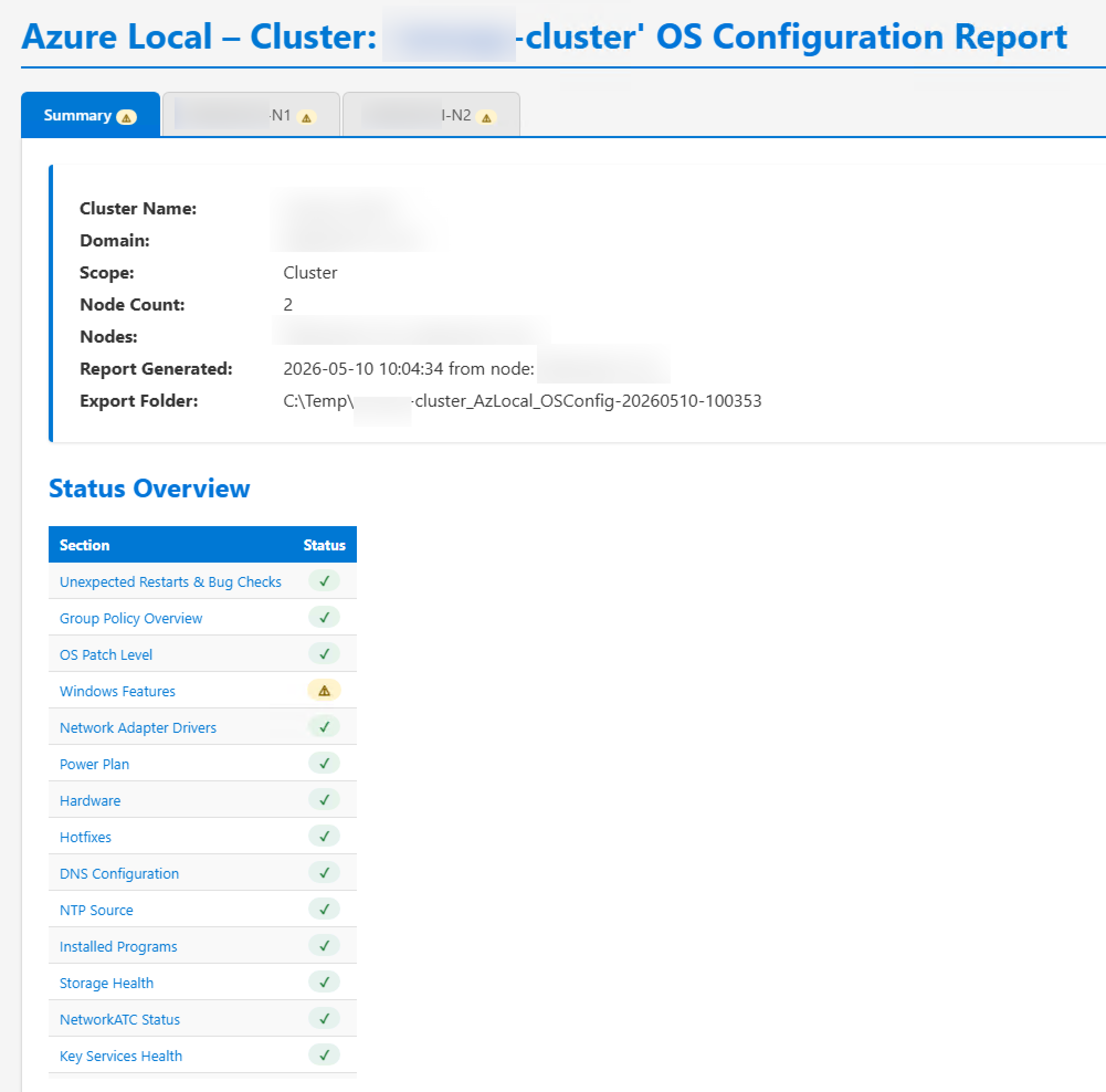
Connectivity sweep across required Azure endpoints:
Test-AzureLocalConnectivity -AzureRegion <your-region> -IncludeOEMUrls DataOnRun this when registration is failing or you're seeing "can't reach Azure" errors. Generates an HTML report with pass/fail per URL, and as of v0.6.6 distinguishes CRL/OCSP-unreachable endpoints from SSL inspection (different remediation in each case). Discrepancies between nodes usually point to firewall or DNS scope issues.
In air-gapped environments, add
-NoAutoUpdateso the cmdlet uses its bundled endpoint list instead of pulling the latest one from GitHub.
Common scenarios
| Symptom | Cmdlet |
|---|---|
| Routine cluster health snapshot / drift check across nodes | Get-AzStackHciOsConfigSettings -Scope Cluster |
| Endpoint reachability unclear; registration or Azure-side errors | Test-AzureLocalConnectivity |
| Need to test a single HTTPS endpoint in detail (cert chain, proxy interception) | Test-Layer7Connectivity |
| Need port-level reachability check to a specific host | Test-TCPConnectivity |
| Suspected SSL/TLS interception by a corporate proxy | Test-AzStackHciSSLInspection -url https://<endpoint> |
| No memory dump after a node bugcheck | Set-AzStackHciMemoryDumpSettings -KernelDump -Scope Cluster |
| Page file too small for kernel dump | Set-AzStackHciPageFileSettings -KernelDumpRecommended -Scope Cluster |
| Application-level crashes need user-mode dumps | Set-AzStackHciUserModeCrashDumpSettings |
| Verifying Arc Private Link scope before registration | Test-ArcMachinePrivateLinkScopeEnabled |
| Push cluster performance history to Microsoft for an escalation | Send-ClusterPerformanceHistory |
Caveats
- PowerShell 5.1 minimum; works on PowerShell 7+ as well.
Get-AzStackHciOsConfigSettings -Scope Clusterrequires Failover Cluster Tools (RSAT) on the machine running the cmdlet, plus PSRemoting access to each node.Get-AzStackHciOsConfigSettingsand similar cmdlets prompt at the end of the run asking whether to upload results to Microsoft (default is yes-at-prompt). Decline interactively or pass-UploadResults:$falseto skip the prompt entirely.- All
Set-*cmdlets have a matchingRestore-*and write a checksummed JSON backup toC:\ProgramData\AzStackHci.DiagnosticSettings\before changing anything. Use-WhatIfto preview. - For collecting a full evidence bundle (logs, dumps, multi-component captures), this isn't the right tool — use
Microsoft.AzLocal.CSSToolsinstead. The two modules are complementary.
Canonical sources
- PowerShell Gallery: https://www.powershellgallery.com/packages/AzStackHci.DiagnosticSettings
- Project repo (shared with the official Azure Local Supportability TSG): https://github.com/Azure/AzureLocal-Supportability
Test-AzureLocalConnectivityis documented in the TSG's Networking section.