
TL;DR: Azure Local stores BitLocker recovery keys cluster-side and in Active Directory — not in the Azure Portal. Run Get-AsRecoveryKeyInfo from another node in the cluster to retrieve the key.
Recommended action:
Connect to any other healthy node in the cluster as a local administrator. Use a local console session, a local RDP session, or a Remote PowerShell session with CredSSP authentication — other session types may not work for this cmdlet.
In an elevated PowerShell session, run:
Get-AsRecoveryKeyInfo | ft ComputerName, PasswordID, RecoveryKeySample output:
ComputerName    PasswordId    RecoveryKey
------------    ----------    -----------
NODE01          {Password1}   Key1
NODE02          {Password2}   Key2
Match the
PasswordIdshown on the locked node's recovery prompt to the row in the output, then enter the correspondingRecoveryKey.If no other cluster node is reachable, retrieve the key from Active Directory instead. On a domain-joined management server, install the BitLocker AD recovery viewer:
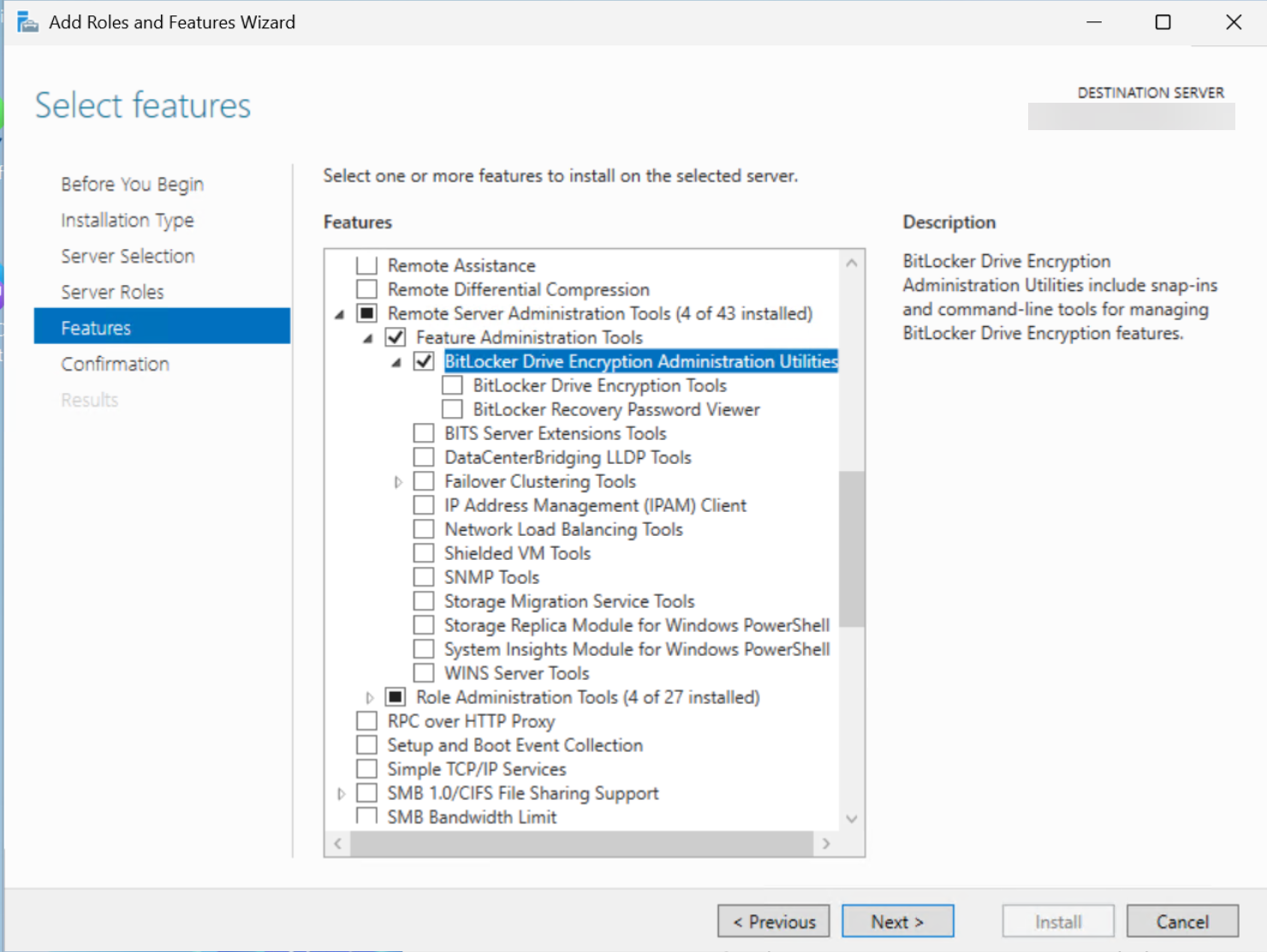
- Open Server Manager, then click Manage → Add Roles and Features
- Click Next through to the Features step
- Expand Remote Server Administration Tools → Feature Administration Tools
- Check BitLocker Drive Encryption Administration Utilities (this auto-selects BitLocker Drive Encryption Tools and BitLocker Recovery Password Viewer)
- Click Next, then Install
Re-open Active Directory Users and Computers, locate the node's computer object, and view the BitLocker Recovery tab to find the recovery key matched by Password ID.
Why:
Hardware changes that affect platform measurements — including NIC replacements, TPM resets, BIOS/firmware updates, or boot-order changes — invalidate the TPM seal protecting the BitLocker volume and trigger the recovery prompt. Azure Local does not escrow these keys to the Azure Portal by default; they are written to the cluster's AsRecoveryKey store and, when domain-joined with the appropriate Group Policy, to Active Directory.
Going forward:
Export your recovery keys and store them in a secure external location — Microsoft recommends Azure Key Vault. If the cluster is down and the keys haven't been exported, you may be unable to access encrypted data on the cluster. Before performing hardware changes on a node, retrieve and stage the recovery key for that node from a peer node first. After the hardware change completes and the node is back online, the TPM will re-seal on the next successful unlock — no further action is needed unless the same component is changed again.
Optional details:
Get-AsRecoveryKeyInfo is part of the Azure Stack HCI / Azure Local management surface and reads from the cluster database rather than the local node, which is why it works from any peer. The Password ID shown on the BitLocker recovery screen is the lookup key — match it to a row in the output. If you have a single-node cluster and that node is the one prompting for recovery, AD (or a previously exported key) is the only retrieval path. The CredSSP requirement for remote sessions stems from the cmdlet performing a double-hop authentication against the cluster's protected store.